Fix Discord in UAE
Download the drover file
Download the drover file below and save it somewhere you can find again, like your Downloads folder or Desktop.
Unzip the folder
Right-click the file you just downloaded and choose Extract All, then click Extract.
A normal folder opens with the files inside. Do this before anything else — Windows can't run programs from inside a ZIP.
Close Discord completely
Discord has to be fully closed, not just minimised to the tray. Press Ctrl + Shift + Esc to open Task Manager.
Look through the list for anything named Discord, click it, and press End task. Repeat until no Discord entries are left.
Run drover.exe
Open the folder you extracted in Step 2 and double-click drover.exe.
- If Windows shows a blue "Windows protected your PC" warning, click More info, then Run anyway.
- If it asks for permission to make changes to your device, click Yes.
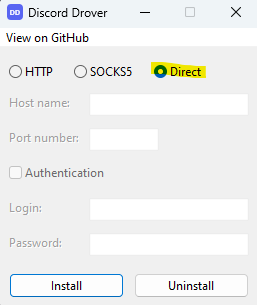
Choose Direct and install
In the Drover window, select Direct, then click Install.
Wait for it to finish. Once it's done, open Discord — it should connect normally.
Discord still won't connect — Restart your PC and open Discord again. Some changes only take effect after a restart.
drover.exe does nothing when you double-click it — Check that you opened the extracted folder, not the ZIP file. Running it from inside the ZIP won't work.
The install seemed to work but Discord is stuck loading — Close Discord from Task Manager as in Step 3, then open it again.
You get an error about permissions — Right-click drover.exe and choose Run as administrator.
Discord should now connect on your home internet. You only need to do this once per computer, so you can leave Drover installed and forget about it.